
The 5 Most Common WiFi Problems in Dubai and How to Solve Each One?

You are paying for an internet plan but your video call keeps freezing and your Netflix still buffers. Frustrating isn’t it? It happens in a lot of Dubai homes, from concrete villas to packed apartment towers.
This WiFi troubleshooting guide covers the most common WiFi problems we see, why they happen, and what you can try yourself before calling anyone. If you’re dealing with WiFi issues in Dubai, one of these five is probably the cause.
1. Your Internet Is Slow Even Though You Pay for a Fast Plan
You signed up for 500 Mbps or even 1 Gbps, but a speed test on your phone shows far less. Before you blame your provider, check these things.
Most of the time, the router is the problem. Many people hide it in a TV cabinet, a closet, or behind a big appliance. That blocks the signal. Heat makes it worse. A router stuck in a hot, closed space slows down and sometimes restarts on its own. Moreover, if one router has to power all of your phones, TVs, and laptops, it cannot cope with such a huge load.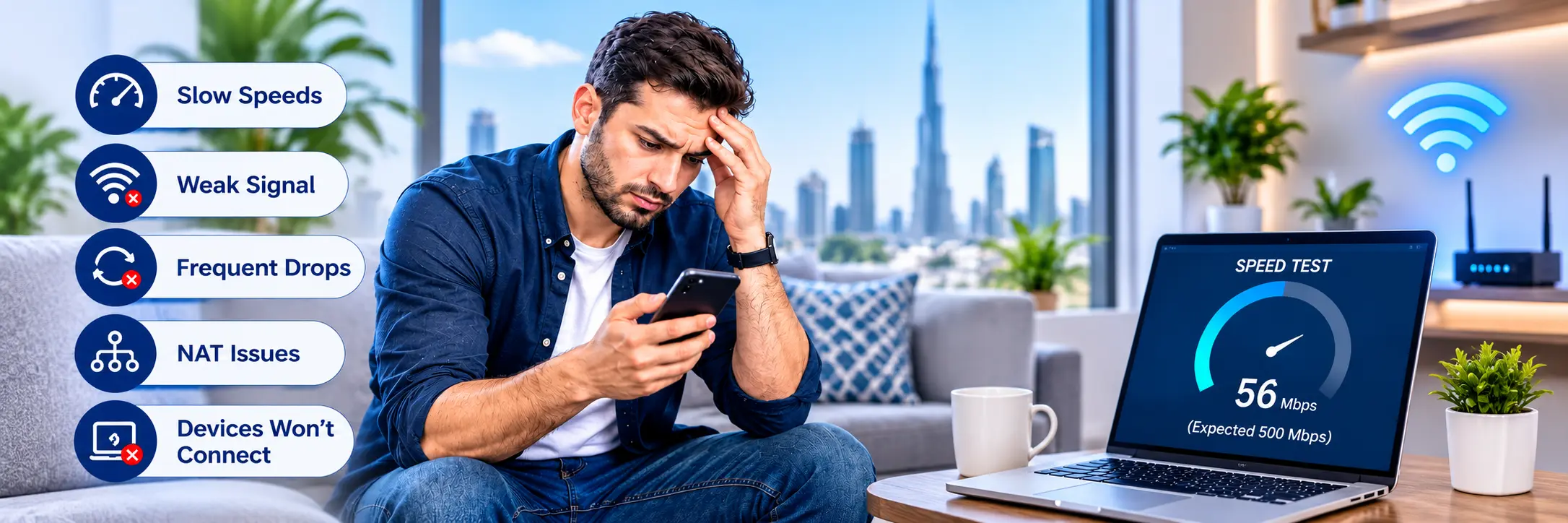
In addition, the indicated speed is a theoretical maximum for an empty room; the connection’s speed depends on the obstacles in the way, such as concrete walls.
What to do:
- Connect your computer to the router via Ethernet cable and check the speed. If it is satisfactory, your problem is in the WiFi;
- Place the router in the central part of the house or at least in a zone that is open. Try not to place it near large electrical appliances and microwaves. Use the 5 GHz band for devices that are located relatively close to the router and require a higher data transfer rate.
- Moreover, restart your router and, perhaps, update the firmware. If the connection is slow even when connected to the router through a cable, the problem may be in the Internet service provider. Call your provider.
2. Weak or No Signal in Villa Bedrooms, Majlis, and Large Apartments
You get full bars in the living room, but upstairs or in the majlis there’s almost nothing. This is one of the most common WiFi problems in Dubai, and it comes down to building materials. Concrete floors and thick walls absorb WiFi signals.
Many people try to fix this by buying a “stronger” router. It rarely works. Even Wi-Fi 6 doesn’t pass through concrete much better than older routers. It’s better at handling lots of devices, but it won’t beat a slab.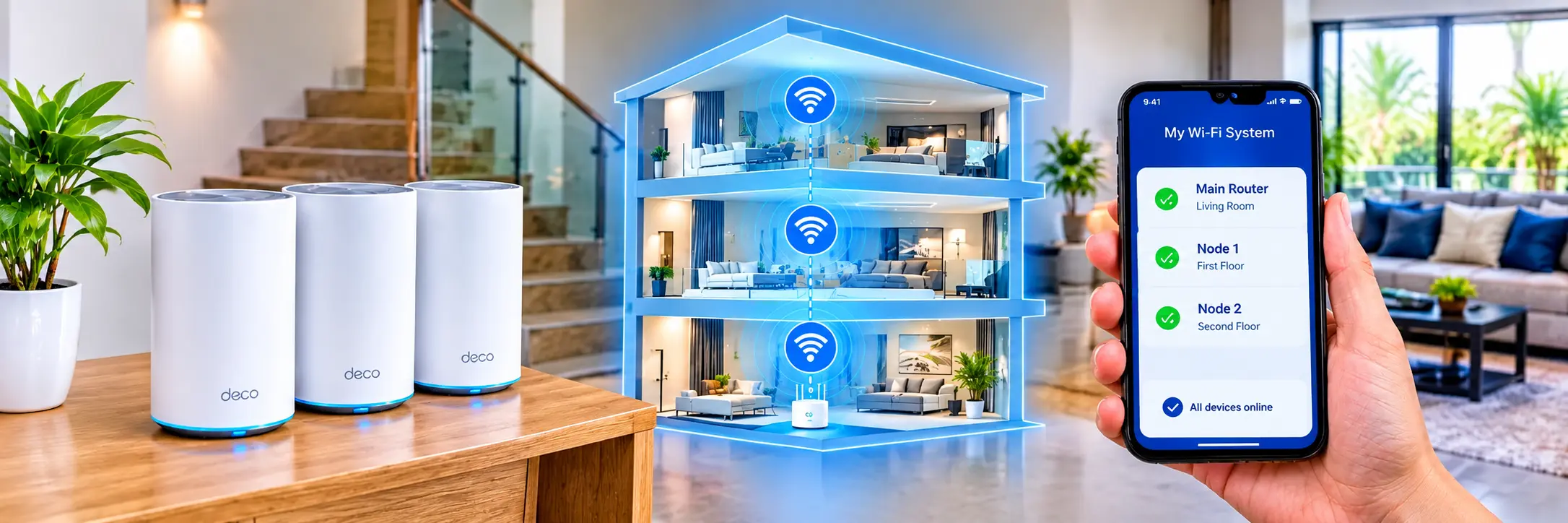
Here’s what usually works, depending on your home:
If you go with mesh, a few placement tips make a big difference:
- Don’t put the units too far apart. Each one needs a good signal from the one before it. Place the upstairs unit about halfway to the dead zone, not inside it.
- Stack them near the stairwell. Signals passed through open stairs are substantially easier to pass than through solid floors.
- If you already have a conduit or Ethernet point going upstairs, use that. A cable is the most reliable option there is.
- Do not put an extender on top of a mesh system, as that just provides another hop and is typically slower.
3. WiFi Keeps Dropping Because of Channels
Your WiFi connection drops for a few seconds, calls drop and your mobile phone is constantly looking for networks. If such problems are familiar to you it means that the WiFi is overloaded.
This happens because there are local networks in buildings or in an apartment with hundreds of routers located close to each other. These routers communicate with devices in the channels and interfere with each other while the 2.4 GHz band is most saturated.
How to fix it:
- Change the channel in the router settings. Try changing the channel for the 2.4 GHz WiFi network to 1, 6, or 11.
- Use the 5 GHz WiFi network. The channel is much less saturated, so it will handle the traffic well, and you can leave it on auto.
- Open the 2.4 and 5 GHz networks on different frequencies and give them different names so that devices can differentiate between them.
- Try to provide the router with an opportunity to get fresh air.
- Call the Wifi Provider and, if the router is old, replace it with a new one, or update the current one.
- You can also download a WiFi analyzer app on your phone, which will indicate which channels are busy and which are free.
4. Double NAT Problems After Adding Your Own Router
Maybe you bought a better router and plugged it into the one from your provider. Now your online games show “strict NAT,” your cameras won’t connect remotely, or port forwarding doesn’t work.
The reason is simple. Your provider’s router already manages your connection. When you add a second router, you end up with two routers trying to do the same job. That’s called double NAT, and it causes exactly these problems.
How to fix it:
- Best option: Put the provider’s router in bridge mode, or ask your provider to do it. Then your own router handles everything.
- Easier option: Set your router to access point mode, so it only gives out WiFi and doesn’t manage the network.
- Last resort: Set your router as the DMZ host on the provider’s router. It works, but it’s messy and less secure.
If your provider has locked the settings, one call to support or a technician visit can save you hours of frustration.
5. Smart TVs and Smart Home Devices That Won’t Connect
Your TV says “connected, no internet.” A smart plug won’t pair. Your cameras keep going offline. These problems usually have simple causes:
- Many smart devices only work on 2.4 GHz, so they fail on a 5 GHz network
- The device is too far from the router
- Having one name for both bands can confuse the device
- Older devices may not support the preferred security
What to do:
- While installing the device, make sure your phone is connected to the 2.4 GHz network.
- Bring the router, or mesh unit, closer to the device
- . Then, restart the TV and the router.
- If an old device will not connect, change the security on the router to WPA2
- For a defiant smart TV, use an Ethernet cable. This is the most reliable method.
More WiFi Problems You Might Run Into
- WiFi is working. Some pages or apps do not open. The solution could be changing the DNS to servers or rebooting the router.
- Uploads are slow. The reason could be that the camera is uploading and backing up to the cloud at the time.
- The signal is weak in the garden or, by the pool. The solution could be an access point instead of an indoor extender.
- Forgot the password to your router. A factory reset will solve that problem, at the cost of having to reconfigure your settings.
- Router restarts in summer. This is almost always heat. Move it somewhere cooler with better airflow.
Mistakes That Make Things Worse
- Hiding your router in your cabinet, closet or behind a fridge or other large appliance.
- Buying a router based on a headline number like AX6000.
- A Wi-Fi 6 router to fix a wall problem.
- Ignoring cables that are already in the walls and could give you a wired connection.
Why a Local WiFi Technician in Dubai Is Worth Calling
You can fix a lot of these problems yourself. But if you’ve tried the steps above and your WiFi is still not working, it’s time to get help. A good WiFi technician in Dubai can save you both time and money.
Here’s why help from wifi technician Dubai makes sense:
- We Know Dubai building Structure well enough. Villas, towers, and older compounds all behave differently, and our wifi experts have probably seen a layout like yours before.
- We better know about Wifi support in Dubai. Bridge mode and router limits differ between e& and du, and a local technician knows how to handle both.
- We test on site. You can’t judge signal strength, interference, or cabling from a distance.
- We can come the same day, so you’re not left without the internet for long.
- We did it right the first time! Correct placement and the use of a wired backbone will ensure that the problem does not persist.
When it comes to WiFi repair services in Dubai, the majority of the issues experienced are due to incorrect router placement, reinforced concrete walls, channel interference, and improper router setup, not a problem with your internet subscription. As such, it is important that you attempt the solutions provided in this guide first before seeking further assistance.
Lastly, if after trying the solutions provided in this guide the issue persists, it is advised that you contact a professional service provider to conduct a professional inspection rather than purchasing unnecessary equipment and attempting DIY repairs